/Thomas-Logo-Color_Stacked_Registered.png?width=250&height=183&name=Thomas-Logo-Color_Stacked_Registered.png)
1. Type what you’re looking for in the search bar. You can include:
-
Parts
-
Services
-
Equipment
-
Capabilities and product details, such as heat-treated, anti-fracture, or spring-loaded
-
Certifications and specifications, such as ADA, FDA, ISO 14000, or Made in the USA
- Location
-
Include “near me” at the end of your search query to return results within 50 miles of your ZIP code, or use a proposition such as “in,” or “near” followed by a US state or Canadian province to find results in or near a specific location.
-
Use the “regions” dropdown menu to the right of the search bar to select a region.
-
Check out the popular searches listed below the search bar to see what other Thomas users are searching for and get examples of how to structure your query.

2. View and Evaluate Suppliers
After you click the “Search” button, you’ll be taken to the search results page. Results are automatically sorted by relevance, but you can use the dropdown menu on the right to sort them by company size, revenue, or the year the company was founded, in either ascending or descending order.
In addition to sorting, you can also filter results using the filters on the left side of the page.
Type what you’re looking for in the search bar. You can include:
-
Category
-
Video type: Find suppliers with the following types of videos on their profile pages
-
Company overview – provides an overview of the supplier’s company and capabilties
-
Factory tour – an inside look at the supplier’s facility
-
Project spotlight – a case study of a project, showcasing the supplier’s products and skills
-
-
Company type: Narrow down your search to custom manufacturers, distributors, trade associations, and more
-
Origin declaration: Source Made in the USA supplies with just one click
-
Quality Certifications: Find the certifications you need, from AISC to TL 9000
-
Ownership diversity: Identify companies that are women-owned, veteran-owned, and more
-
Other certifications/registrations: Narrow down your search further with additional certifications and registrations
-
Product detail: Select suppliers that have capabilities profiles and/or product catalogs on their Thomasnet profile pages. If a supplier has a catalog, you can view it from the search results page by clicking the “view catalog” button
-
Location: Find suppliers located in or near your state or province
-
Featured suppliers: Thomas Verified and Xometry Partner
-
The Thomas Verified Supplier badge indicates that Thomas has confirmed the company operates in North America, provides accurate business information in its Thomasnet profile, has undergone a complete review and validation of all products and services currently offered, and is open to quoting new opportunities.
-
The Xometry Partner icon indicates that the company is a customer manufacturer that is part of the Xometry Partner Network.
-
3. Create Shortlists and Send RFIs
Once you have your search results, you can save suppliers that interest you or send requests
for information (RFIs) directly from the search results page. To contact a single supplier, click the “contact supplier” button on their profile card. You can also contact suppliers by using the "contact supplier" and "request information" buttons at the top of a supplier’s profile page — both of these buttons have the same function and will open a contact form.
You can use the “select” button to select up to five suppliers and send multiple RFIs at once.
Click the “save” button on a supplier’s profile card to save suppliers to your Thomas Account, or create a specific shortlist based on your project requirements.
You can also save suppliers or add them to your shortlists from their profile pages using the “save supplier” and “add to shortlist” buttons. Next to these buttons, you’ll also see options to print supplier information or suggest an edit to their profile if you think there is incorrect information.
Once you create a shortlist, you can access it in the “shortlists” tab of your account and export the list as a CSV (Excel-compatible) file by clicking the “download” button. If you did not select a specific supplier, clicking the button will export the whole list. Alternatively, you can select specific suppliers for which you would like to download data.
3. Other Ways to Search
In addition to the search bar on the Thomas homepage, you can also search using Supplier Discovery.
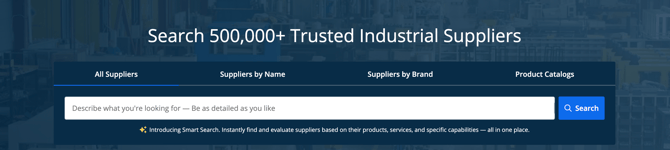
This page lets you search in the following fields:
-
Suppliers by name: If you know the name of the supplier you are looking for, use this option
-
Suppliers by brand: Use this option if you want to search for suppliers who carry a specific brand of product
-
Product catalogs: Search using this option to peruse catalogs for particular product categories
You can also search by name, brand, or catalogs from the Thomas homepage by using the dropdown on the left of the search bar and selecting one of the options below “all suppliers.”