/Thomas-Logo-Color_Stacked_Registered.png?width=250&height=183&name=Thomas-Logo-Color_Stacked_Registered.png)
WebTrax Home Features
Time Frame Selection
Click on the date drop down menu in the upper right corner of your screen to edit the time frame of your Thomas WebTrax reporting. Click “Apply” to see your WebTrax data updated to the new time frame.
Your Most Active Identifiable Audience
Out of all the sessions on your site in the selected time frame that were able to be identified to a Company Name, these are the most active ones by quantity of page views. The icons underneath the Company name represent the location of where the activity occurred, whether on the Thomas Network platform or your own website, as well as any tracked actions the visitor took. Click on a visitor name to see all of their sessions within your selected time frame.
Your Key Analytics - Top Referrers Report
A report that provides a list of referrers ranked by how many individual user sessions visited a website through a particular site, search engine, or directory. Click on any referrer to be taken to filtered sessions report.
Your Key Analytics - Session Depth & Length Reports
Provides percentages by the length of time visitors are staying on your website and the number of pages viewed by these visitors compared to the number of sessions in a given time period.
Left Menu Definitions and Tools
Audience
Composed of all sessions seen on your site within your selected time frame with no filters applied. You can zoom in on each map to see where your visitors are engaging your online presence from. The closer you zoom, the more specific each location gets.
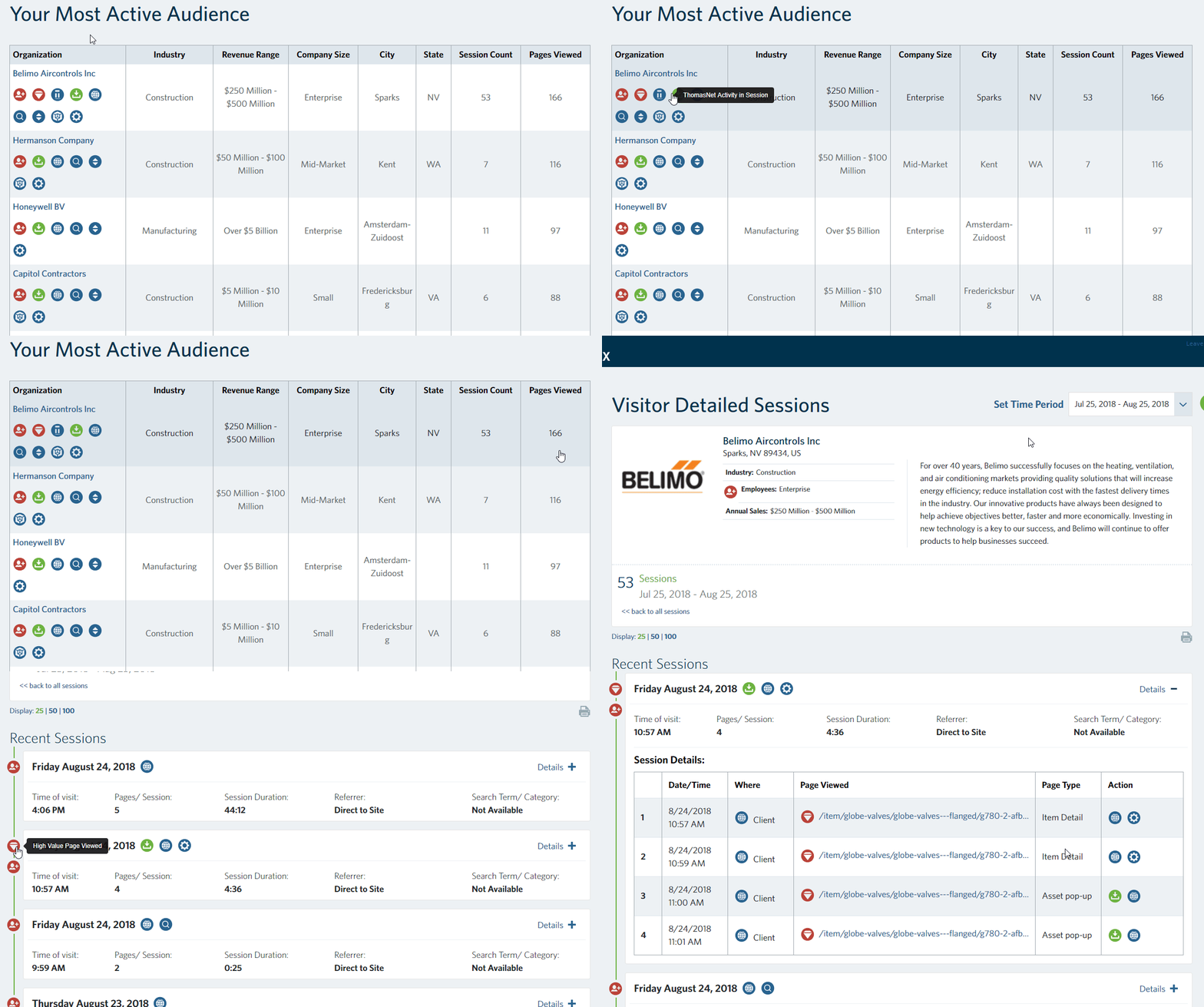
Your Most Active Identifiable Audience
Out of all the sessions on your site in the selected time frame that were able to be identified to a company name, these are the most active ones by quantity of page views. The icons underneath the company name represent the location of where the activity occurred, whether on Thomas or your own website, as well as any tracked actions the visitor took.
Click on a visitor name to see all of their sessions within your selected time frame. Keep in mind that these Most Active Audience tables will change depending upon any filters you have applied.
Audience - Targeted Audience
Composed of all sessions filtered by your Targets.
Audience - Thomasnet.com Audience
Sessions filtered to include only those engaging with your Thomas profile content.
All Sessions
All sessions seen on your site within your selected time frame, with no filters applied. Sessions give you deep, page level insight into visitors and their actions over time. Understanding how industrial purchasers interact with your online presence over the course of your sales cycles can be invaluable in helping to shape that presence.
All Sessions - Targeted Sessions
Sessions filtered by your Targets. See Customize Targets for more information.Pro tip: For a quick view of the Icon Legend to decipher the icons assigned to Recent Sessions, click the Question Mark Icon in the top right of any page. You can also mouse over icons to see the name. View the Action Icons page for full definitions.
All Sessions - Thomasnet Sessions
Sessions filtered to include those engaging your content on the Thomas Network.
All Sessions - Thomas RFIs & Phone Calls
RFIs and Phone Calls from users either on the Thomas Network or your own site.
Definitions:
- Organization Name: When possible, a visitor is identified to an organization name. If this cannot be done, the term “unknown” is displayed, followed by the geographic location of the session, followed by the Internet Service Provider behind the session.
- Referrer: Site, search engine, or directory that the visitor came from.
- Search Term/Category: Search term (underlined) or category used by a visitor on a site, search engine, or directory.
- Time of Visit: Date and time a visitor came to the website.
- Session Duration: How long a visitor stayed on a website. Time will be 0:00 if only one page is viewed, as duration can only be calculated for a page after a second page is visited that is also tracked with WebTrax.
- Pages/Session: How many pages were viewed on your website within the session.
Analytics
Overview of analytics reports available to you to evaluate categories of visitors to your Thomas profile and company website.
Analytics - Top Pages
Lists pages viewed on a website in the order of how many times that particular page has been viewed overall. Note that a referral source funnel analysis can be displayed for any top page.
Analytics - Entry Pages
Lists pages viewed first when a visitor lands on a website in the order of how many times that particular page has been an entry page.
Analytics - Exit Pages
Lists pages viewed last on a website before a visitor leaves in the order of how many times that particular page has been an exit page.
Analytics - Search Terms
Lists search terms/categories that visitors searched for and found a website. The count column tells how many visitors searched for the particular search term. If the user came from a category within the Thomas Network, the category will be displayed as a search term.
Analytics - Browser & OS
Shows how many visitors use a particular Internet browser and operating system.
Customize Targets - Your Target Audience & Pages
Set the demographic, industry, company, geographic, and high value page targets you want to evaluate with WebTrax, so you can analyze how visitors matching these settings are interacting with your online presence. Customizing these targets will affect the display of data across Thomas WebTrax. Visitors matching these customized targets will show this icon  .
.
Setting High Value Pages allows you to easily report on only those visitors that interact with pages that you set. This data helps you evaluate your highest margin product and service pages, pages related to marketing campaigns, and your company's latest offerings.
Best practice pages to include are:
- Contact Us
- Request a Quote
- Submit an Inquiry / Request for Information
- Thank you form generated from quote request
- Content download pages
Settings - WebTrax Technical Settings
Thomasnet.com-only Sessions in WebTrax
Thomas WebTrax captures activity on both your Thomas profile and on your website. With this setting enabled, you will be able to see sessions in WebTrax that engaged with your Thomas profile content, but never left the platform to view your website, giving you the same real-time insights into your program that you get with Thomas WebTrax reporting on your own site.
Thomas Bot Filtering
Benefit from Thomas identification efforts of non-human activity by enabling this option to remove this activity from your WebTrax reporting. This option applies to activity both on the Thomas Network and your own website.
Your Settings
- URL to your main index file: Lists all the domains that are being tracked on the same activity report (code must be on all the pages of each domain).
- Your time zone: Shows the time zone in which you are viewing your reports.
- Default # of sessions to display: Set default of how many sessions to view on one page.
Advanced Settings
- IP blocking: If you do not want a particular user to be included in your activity reports enter the IP address of that user in this box. Note that due to privacy concerns, WebTrax does not expose IP addresses of users.
- Referrer blocking: If you do not want a particular referrer to be included in your activity reports just enter the referrer’s URL in the box.
- Countries to exclude: If you do not want a particular country to be included in your activity reports, select country(s) in this box.
- Index.*—>/: This option should be used if you have two different file names for the same page or using a nonstandard page (ex. or ASP). If you enter in the file names, WebTrax will know to count the multiple file names as being only one user page.
- Own referrers: This option should be used if you want to exclude your company’s URL or multiple URLs from showing up as a referrer in your WebTrax reports.
- Short Query: This option is used mostly for dynamic content. If you put an asterisks (*) in this field it will tell WebTrax to log the entire URL with all dynamic attributes instead of just the main domain and file name.
- White Page Search Terms: This option allows you to separate white page searches from yellow page searches. It can consist of company name or a variation of it. This usually occurs with reoccurring visitors. Enter in search term and hit enter to add multiple terms.
- Cookie: This is where you can request that activity from your computer not be counted in your WebTrax activity reports. To exclude yourself, click on the “Don’t count my hits!” link. As this is cookie-based, it only works if your browser does not delete cookies. If you want to prevent all members of your organization from appearing in WebTrax, considering blocking your IP address.
Settings - Your Tagging Instructions
This is where you find your Customized WebTrax Tracking Code. Place this tracking snippet on all website pages that you would like to track with WebTrax. You can place this snippet within a website component that dynamically populates on all of your website pages, such as your website footer, or you can place it individually on each page. If placed individually, we recommend that you place the tracking snippet just before the closing </body> tags on each page. Thomas clients can contact WebTrax support for free professional implementation of WebTrax tracking across their online presence.
